How to map synced companies to your organization and manage them inside the Admin Panel.
Posted on 2025-08-22 Updated on 2025-08-261 . Open Admin Panel
- Login to PreciseCA Web Application as Organization Admin.
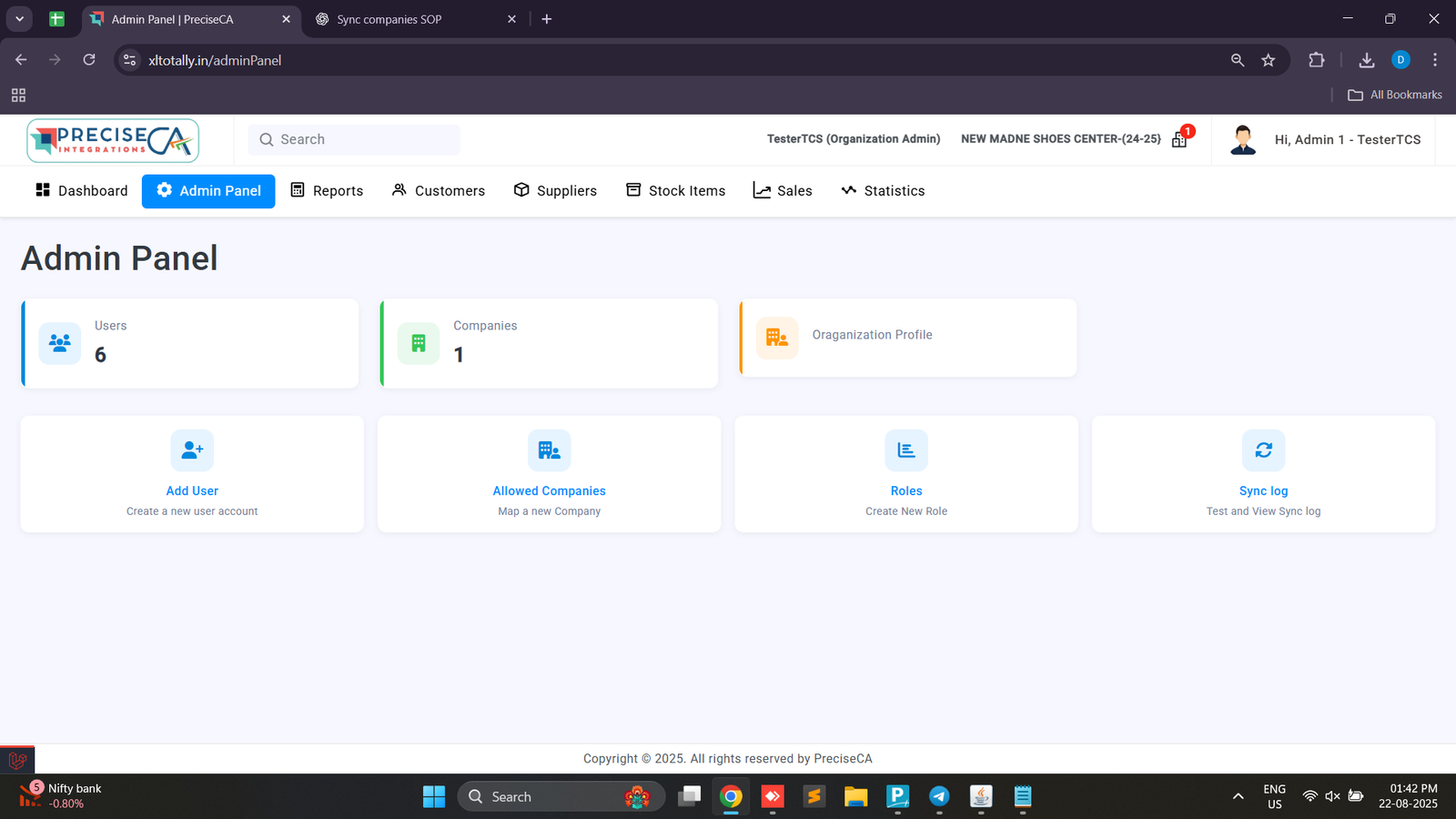
- From the top menu, click Admin Panel.
- You will see the overview (Users, Companies, Organization Profile, Allowed Companies, Roles, Sync log,
2 . View Allowed Companies
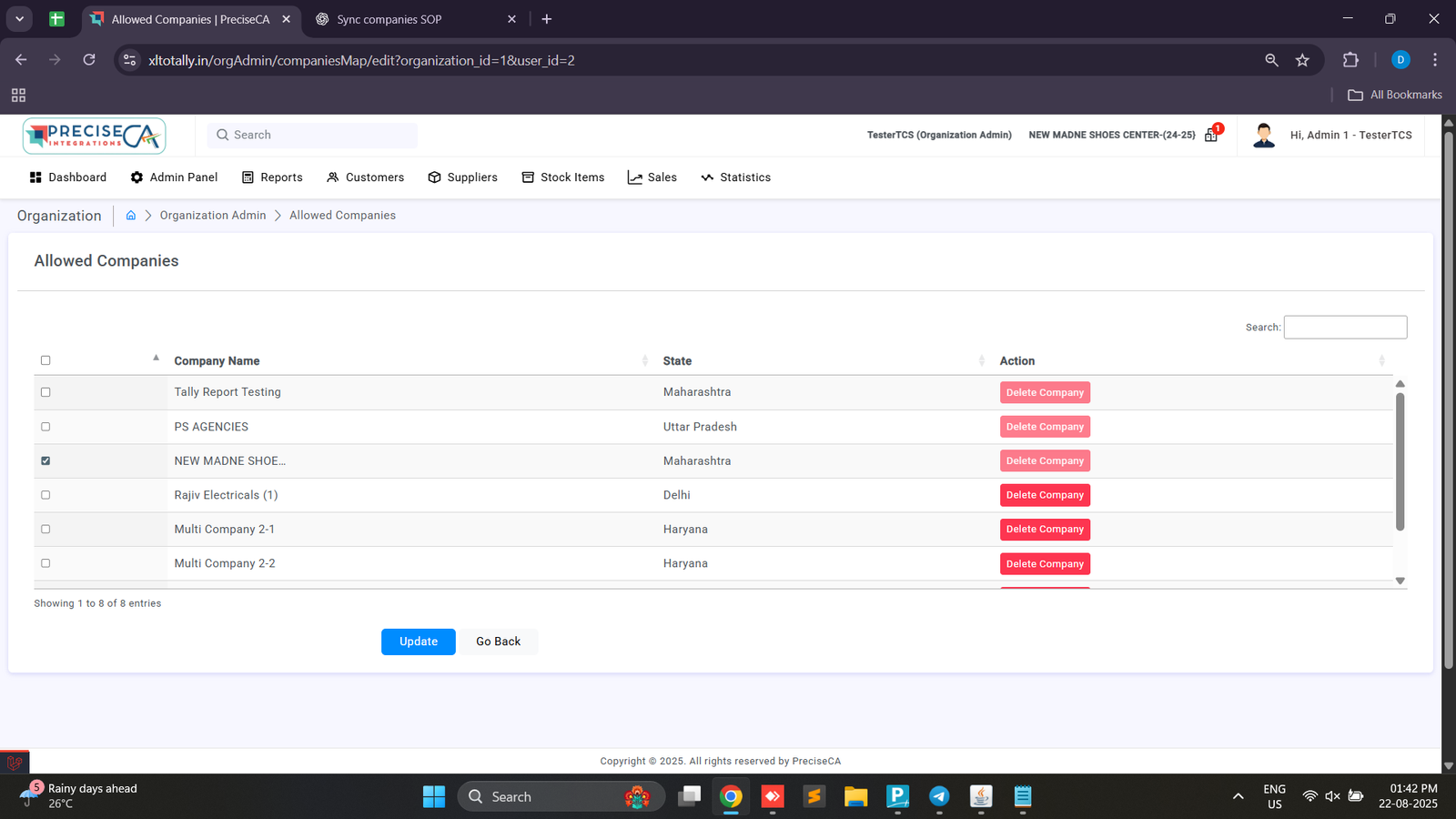
- In the Admin Panel, click Allowed Companies.
- A list of all companies synced from Tally will be displayed, along with their State and Action options.
- Select the checkbox for the company you want to map to your organization.
- Click Update to save.
3 . Check Mapped Companies
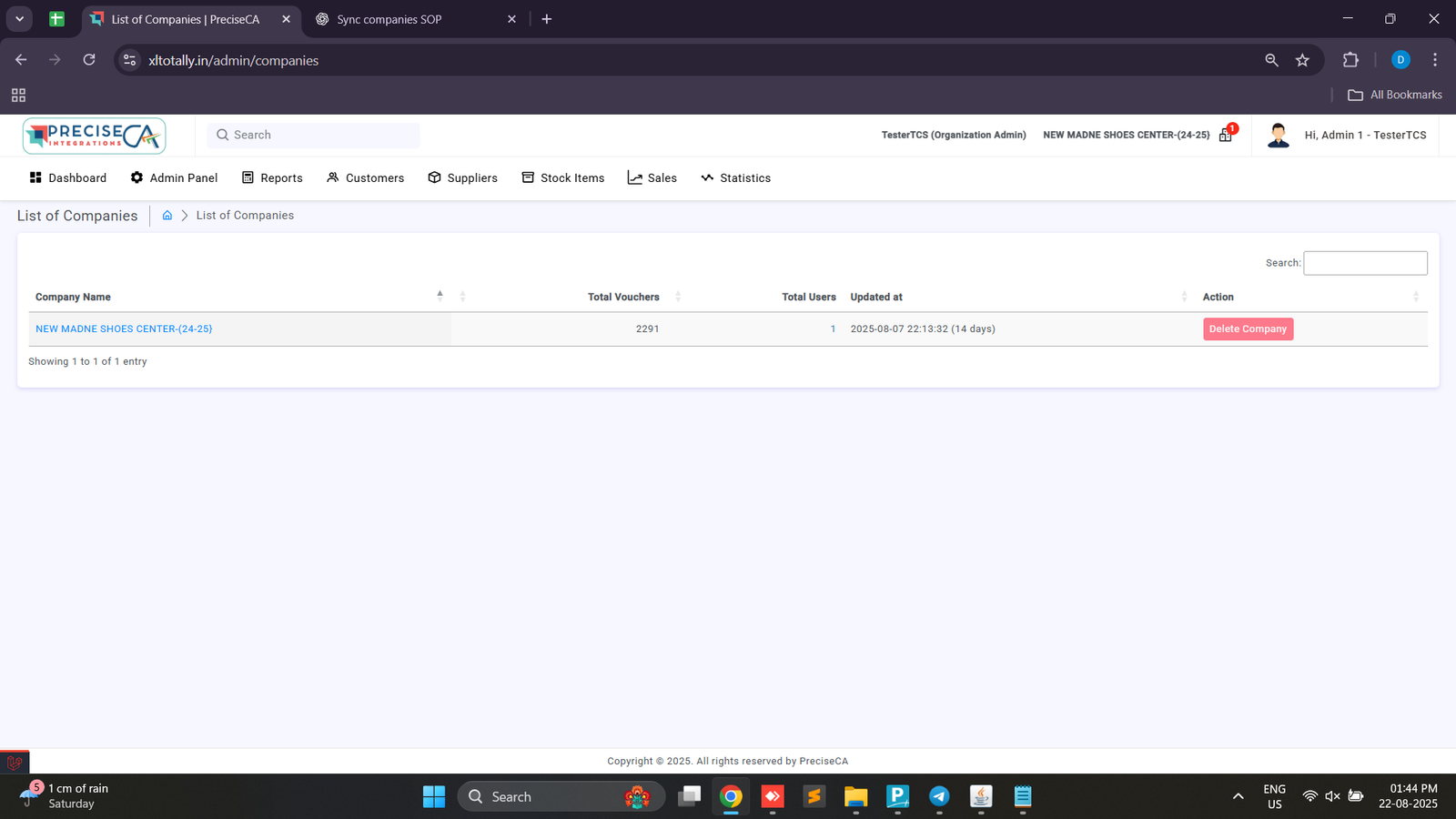
- Go to Admin Panel → List of Companies.
- Here you can see all mapped companies, along with details such as:
- Company Name
- Total Vouchers
- Total Users
- Last Updated (date of last sync)
- Example: NEW MADNE SHOES CENTER (24-25) with vouchers count and sync date.
Found this article helpful?
[ 0 Out of 0 Found Helpful ]