To create, assign, and manage roles that define user access to reports within the organization.
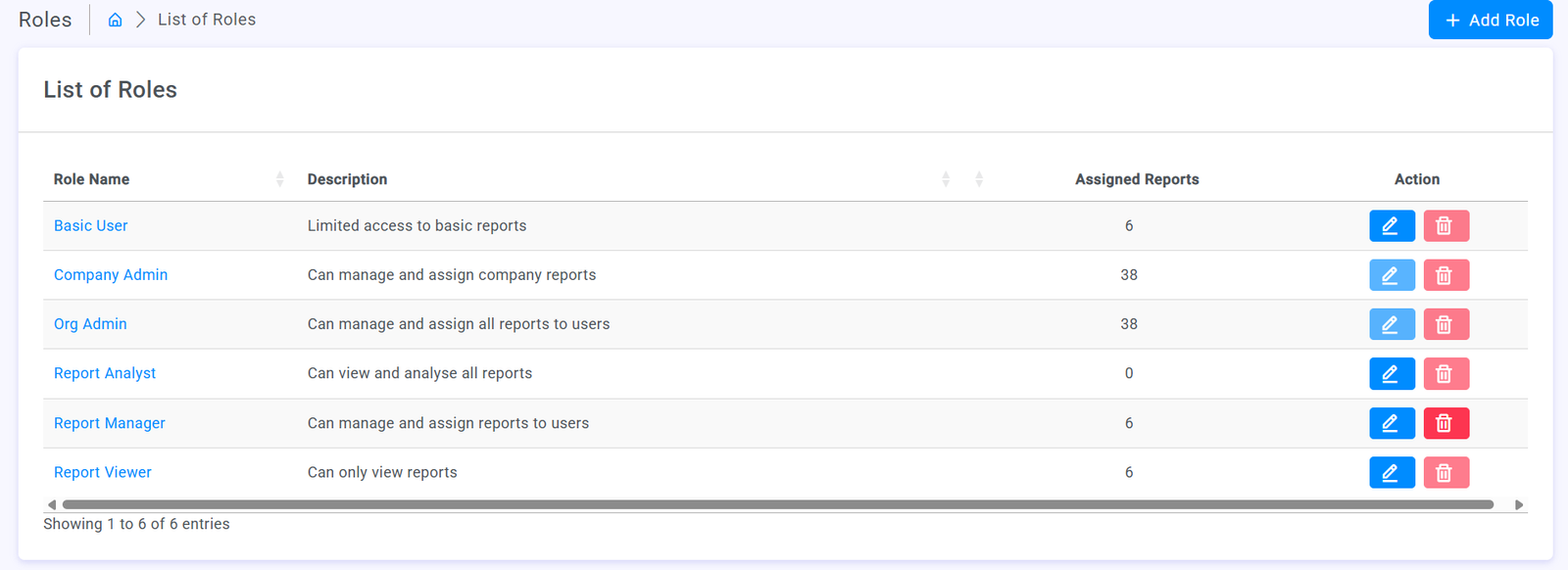
Posted on 2025-08-261 . View List of Roles
- Login as Organization Admin.
- Go to Admin Panel → Roles.
- The system will display all roles with:
- Role Name
- Description
- Number of Assigned Reports
- Action buttons: Edit / Delete
2 . Create a New Role
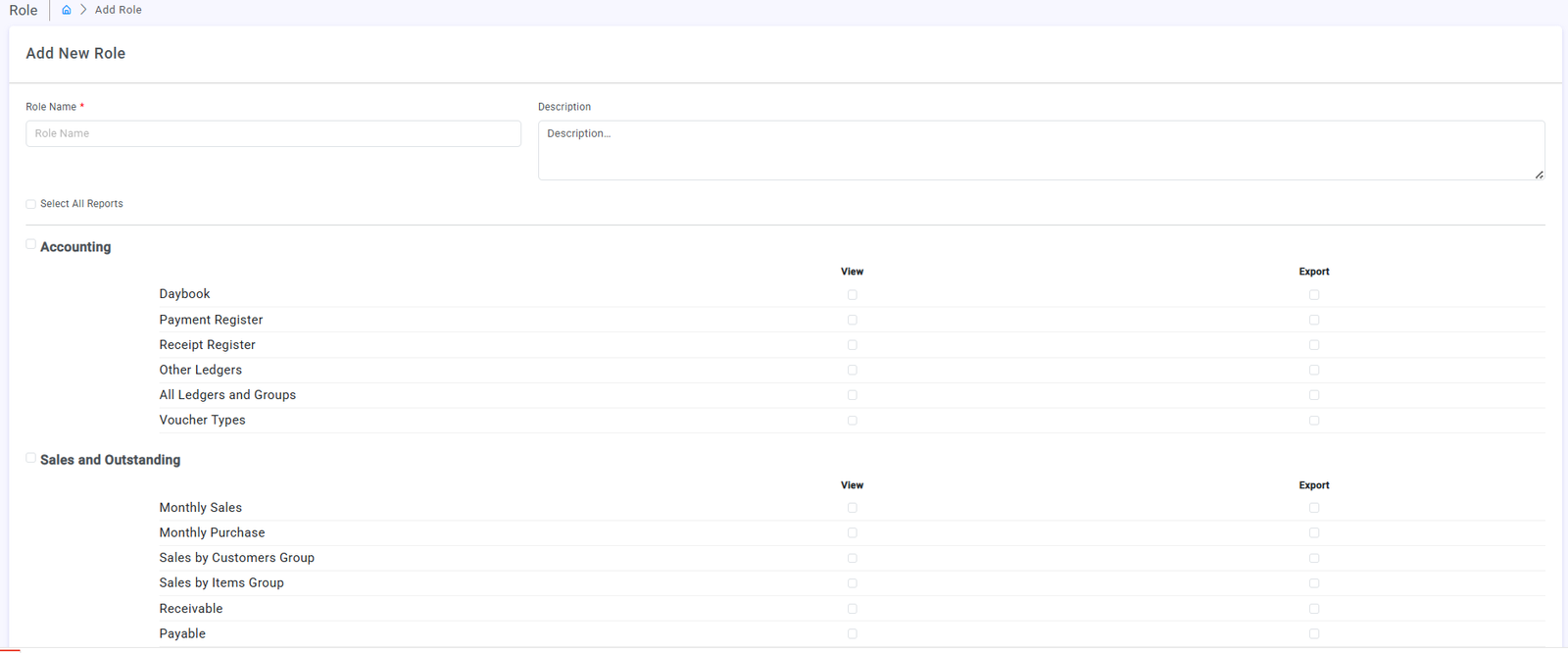
- Click Add Role.
- Fill in the required fields:
- Role Name (e.g., Report Viewer, Analyst, Company Admin)
- Description (short note about role access)
- Select permissions for reports:
- Each report has options View and Export.
- You may select all reports or only specific ones.
- Reports are grouped under sections like:
- Accounting
- Sales & Outstanding
- Financial Reports
- Navigation Reports
- Other Reports
Step 3 – Edit or Update Role Access
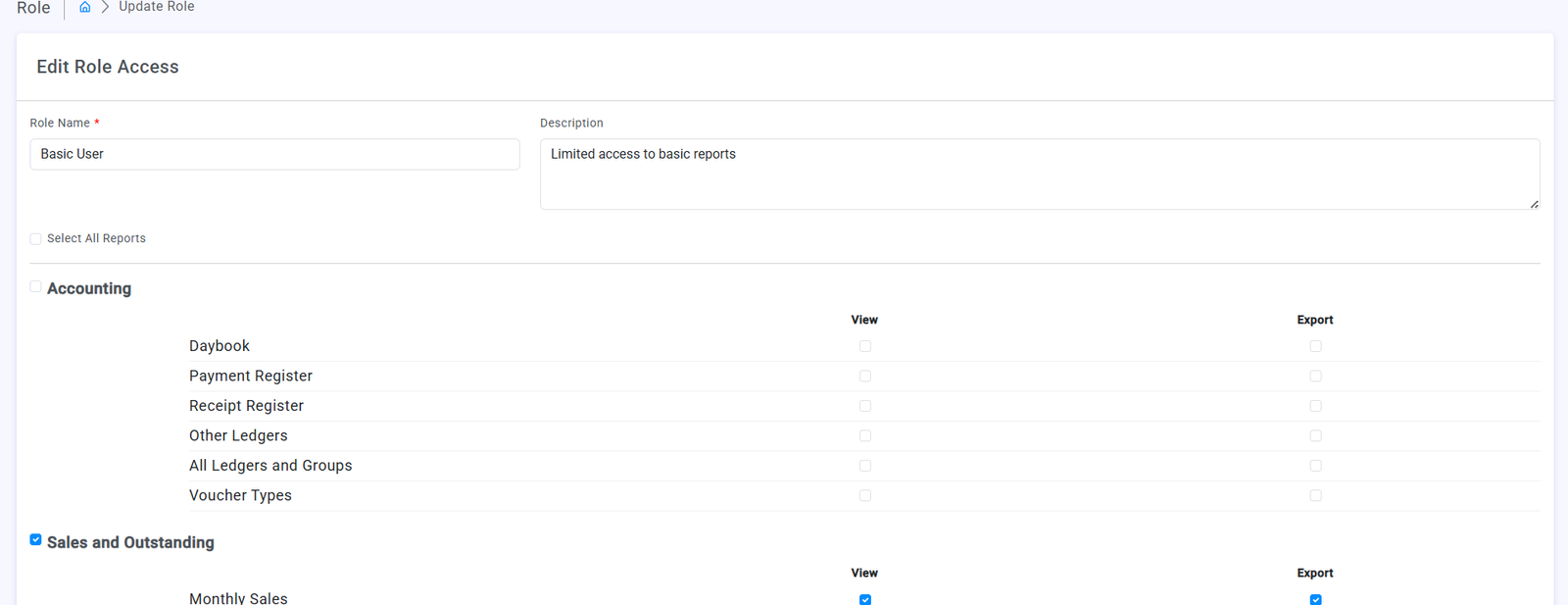
- In the Roles list, click the Edit (pencil icon) for the desired role.
- Update report permissions (enable/disable View/Export).
- Save the changes.
Step 4 – Assign Role to Users
- Roles can be assigned when creating a user or later from the Users list.
- For each company mapped to the user, select the Role (e.g., Company Admin, Basic User).
- A user can have different roles for different companies.
Step 5 – View Role Details
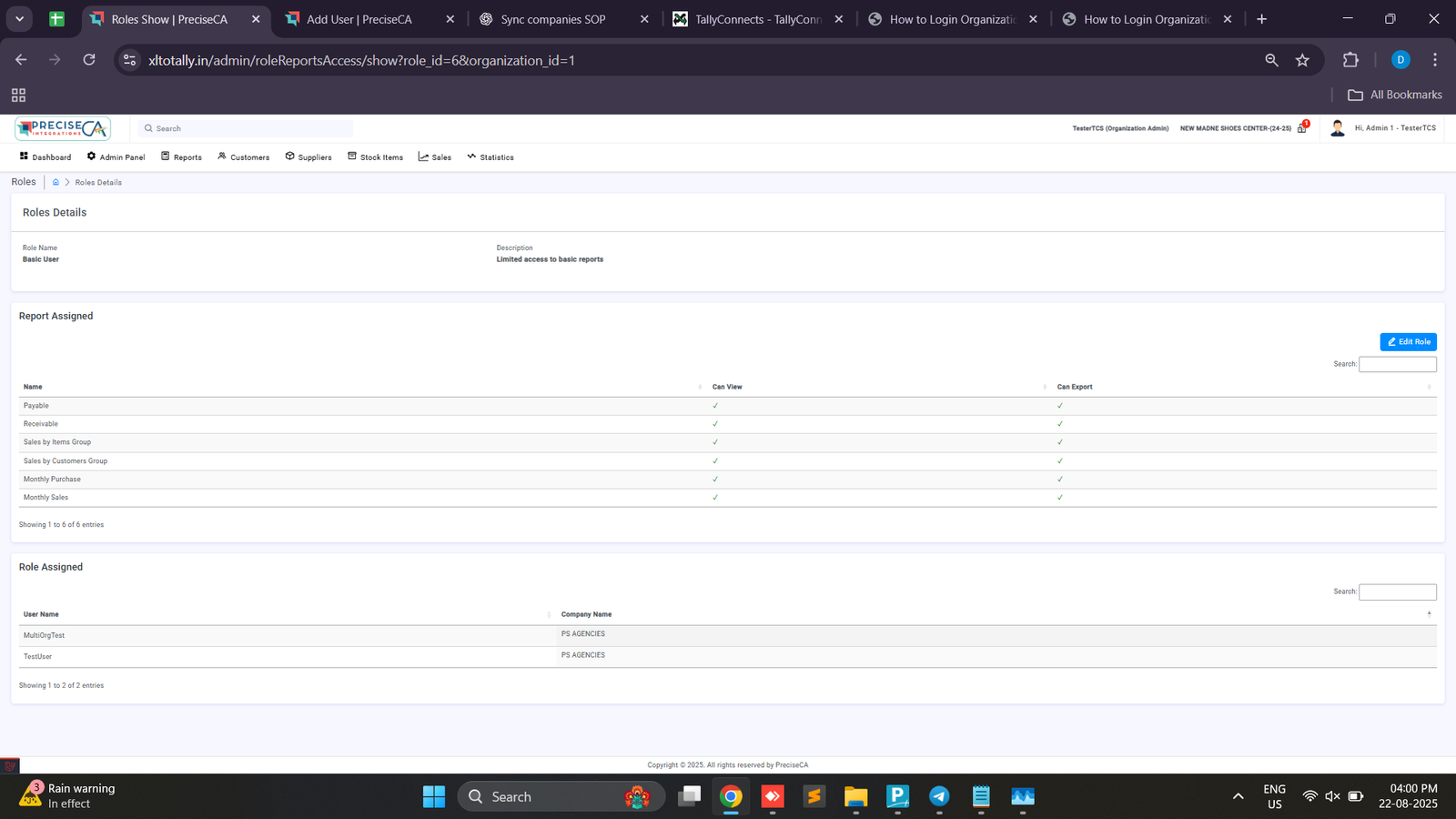
- From the Roles list, click on a role name to open details.
- The Role Details page shows:
- Reports Assigned (with View/Export rights)
- Users Assigned (list of users who have this role)
- Companies Assigned (linked to the role)
Found this article helpful?
[ 0 Out of 0 Found Helpful ]