Steps to Sync Companies with Sync Utility in Web Application
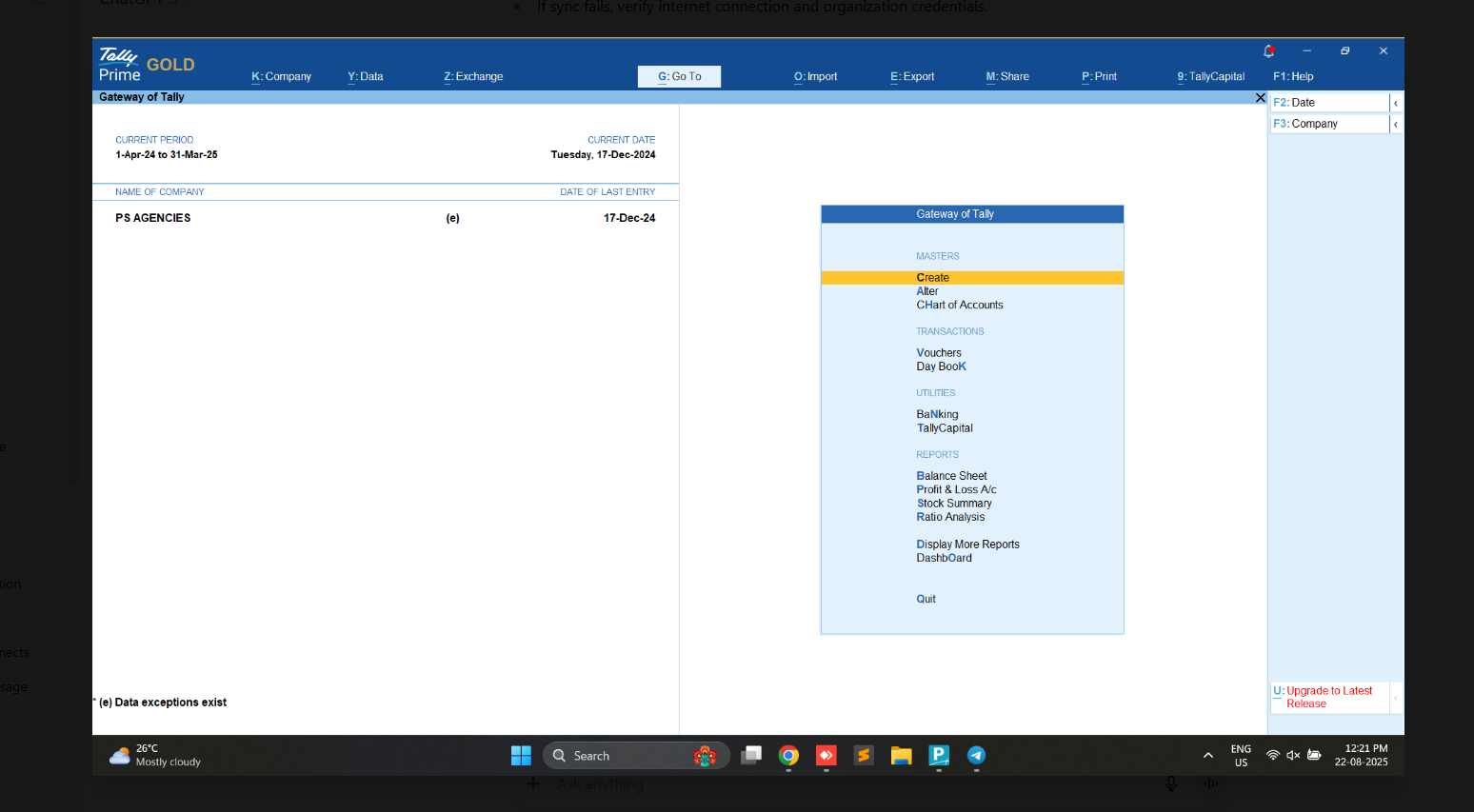
Posted on 2025-08-22 Updated on 2025-08-251. Open Tally (Licensed Version)
- Launch Tally Prime with a valid license.
- From the Gateway of Tally, open the company you want to sync.
2. Open Sync Utility
- Launch the PreciseCA Sync Utility on your system.
3. Mobile Authentication
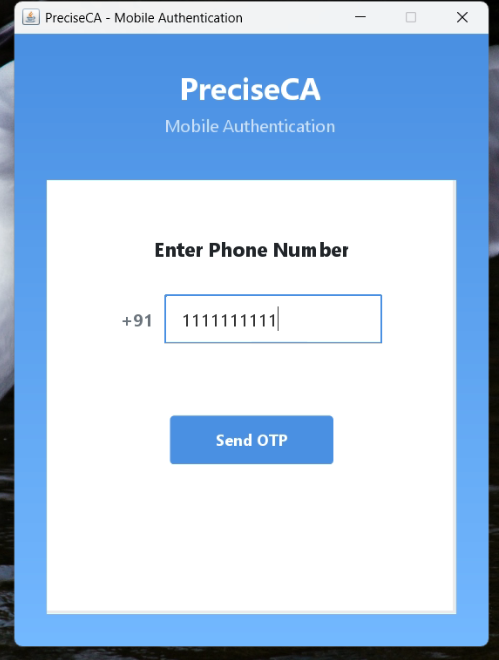
- Enter your registered (Organization Admin's) mobile number and click Send OTP.
- Enter the OTP received on your phone to continue.
Note :
Only the Organization Admin’s registered mobile number can be used for authentication during the syncing process.
Other user's numbers will not be accepted.
4.Select Organization
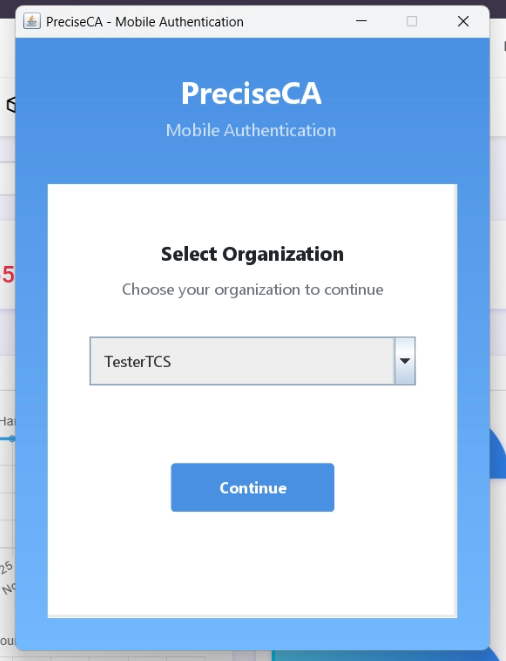
- From the dropdown, select the organization linked to your PreciseCA account (e.g., TesterTCS).
- Click Continue.
5.Open Tally Sync Dashboard
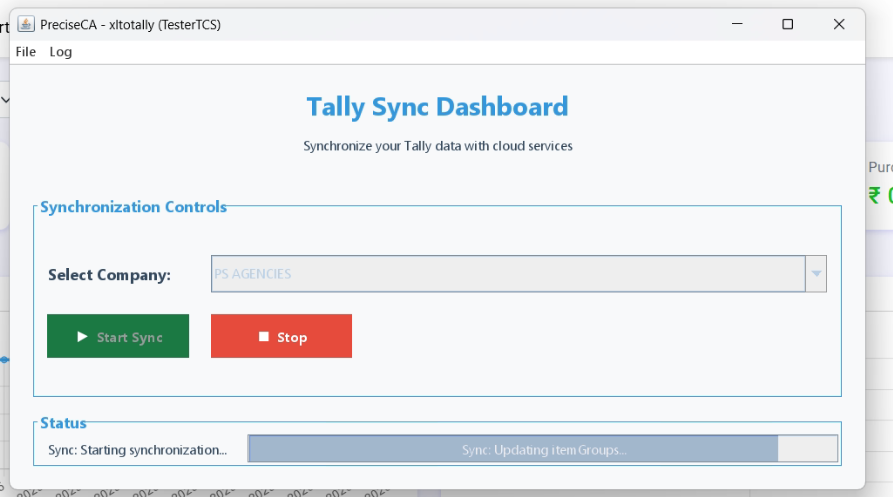
- In the Sync Utility dashboard, your opened Tally company will appear in the Select Company dropdown.
- Select the company.
6. Start Sync Process
- Click the Start Sync button.
- The status bar will display messages such as "Sync: Starting synchronization".
- Wait until the process is completed.
Found this article helpful?
[ 0 Out of 0 Found Helpful ]