How to add a new user in the organization and assign companies with roles using the Admin Panel.
Posted on 2025-08-221 . Navigate to Add User
- Login as Organization Admin in the PreciseCA Web Application.
- Go to Admin Panel.
- Click on Add User.
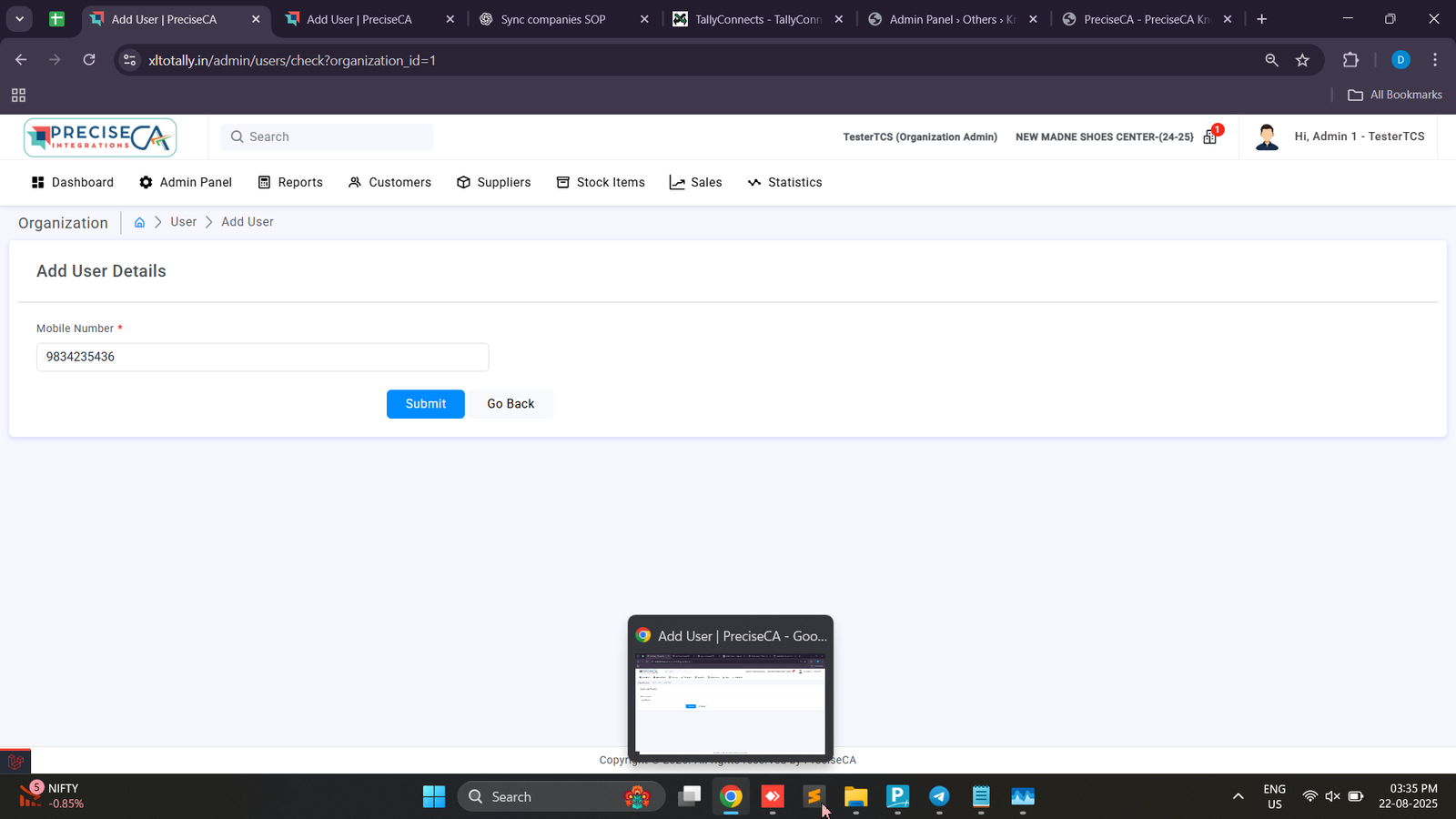
2 . Enter Mobile Number
- Enter the user’s mobile number and click Submit.
- System will check if the user already exists:
- ✅ If the user exists → details will be fetched.
- ❌ If no user is found → system will show “No user found” with an option to Create User.
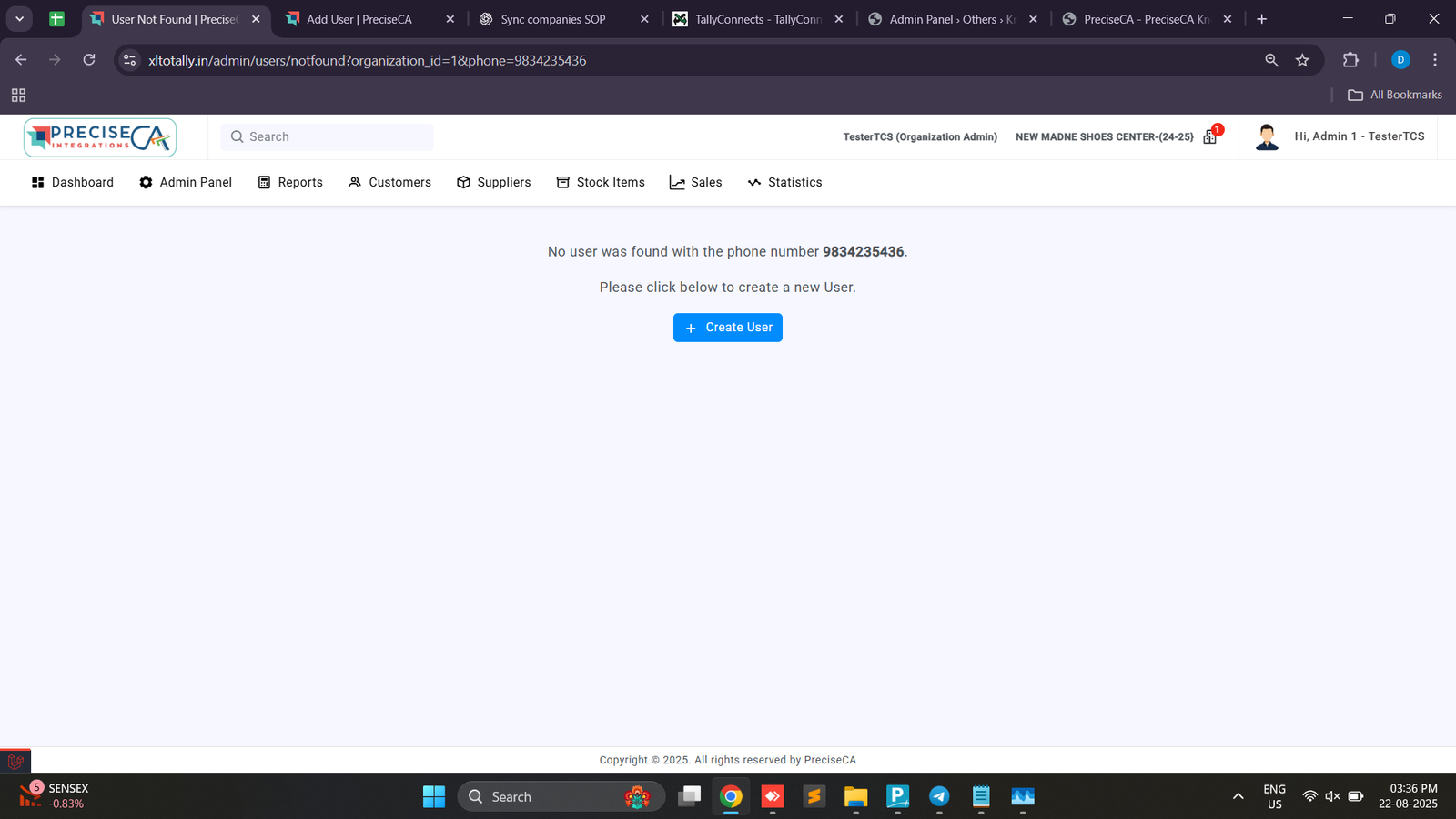
3 . Create User (If Not Found)
- Click Create User.
- Fill in the required details:
- Name (mandatory)
- Email Address (optional)
- Mobile Number (auto-filled)
- Address (optional)
- Admin Notes (optional)
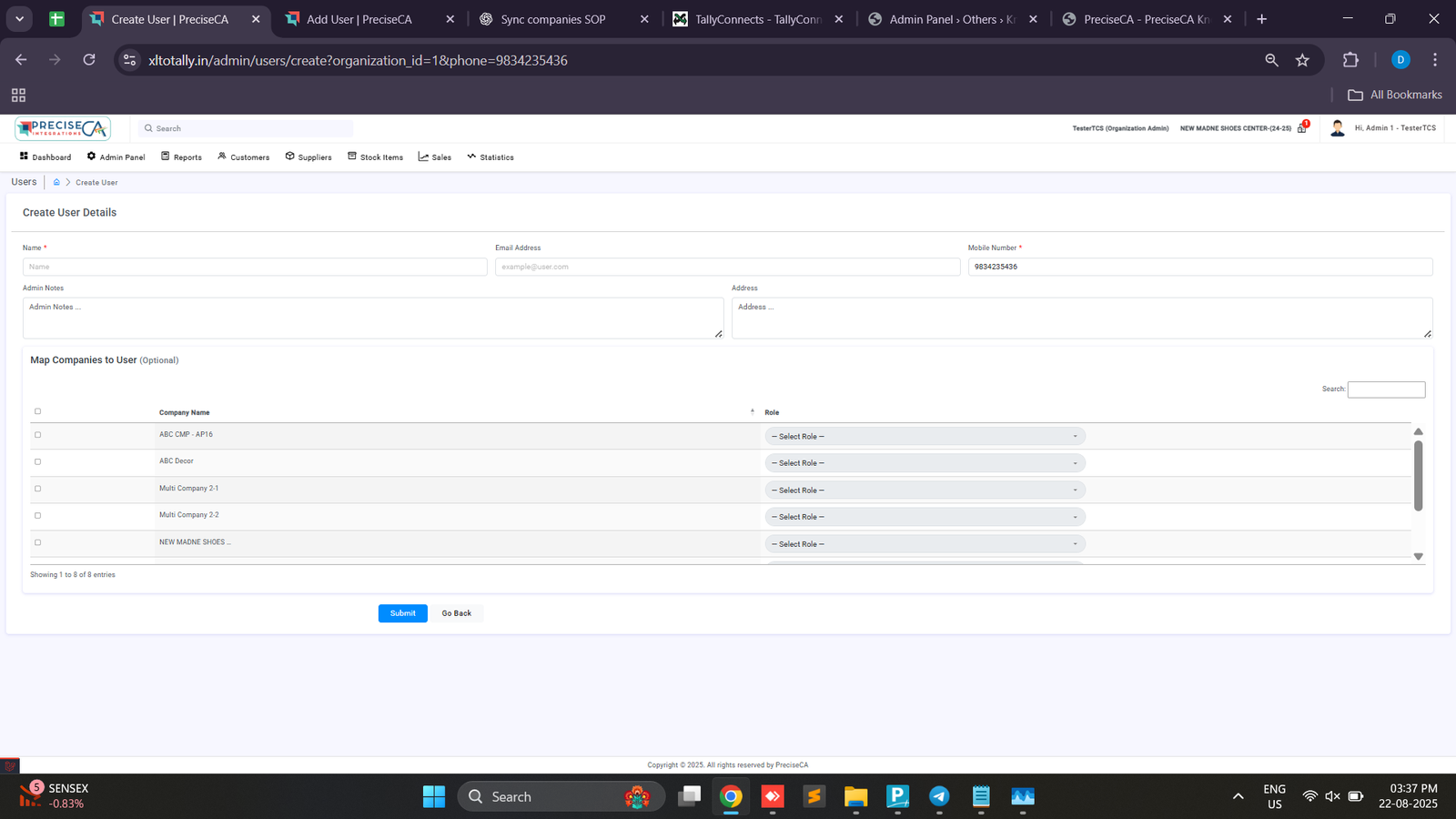
4 . Map Companies to User
- Scroll down to Map Companies to User.
- A list of companies will appear.
- For each company, select the Role from the dropdown (e.g., Admin, Accountant, Viewer).
- You can assign multiple companies to the same user.
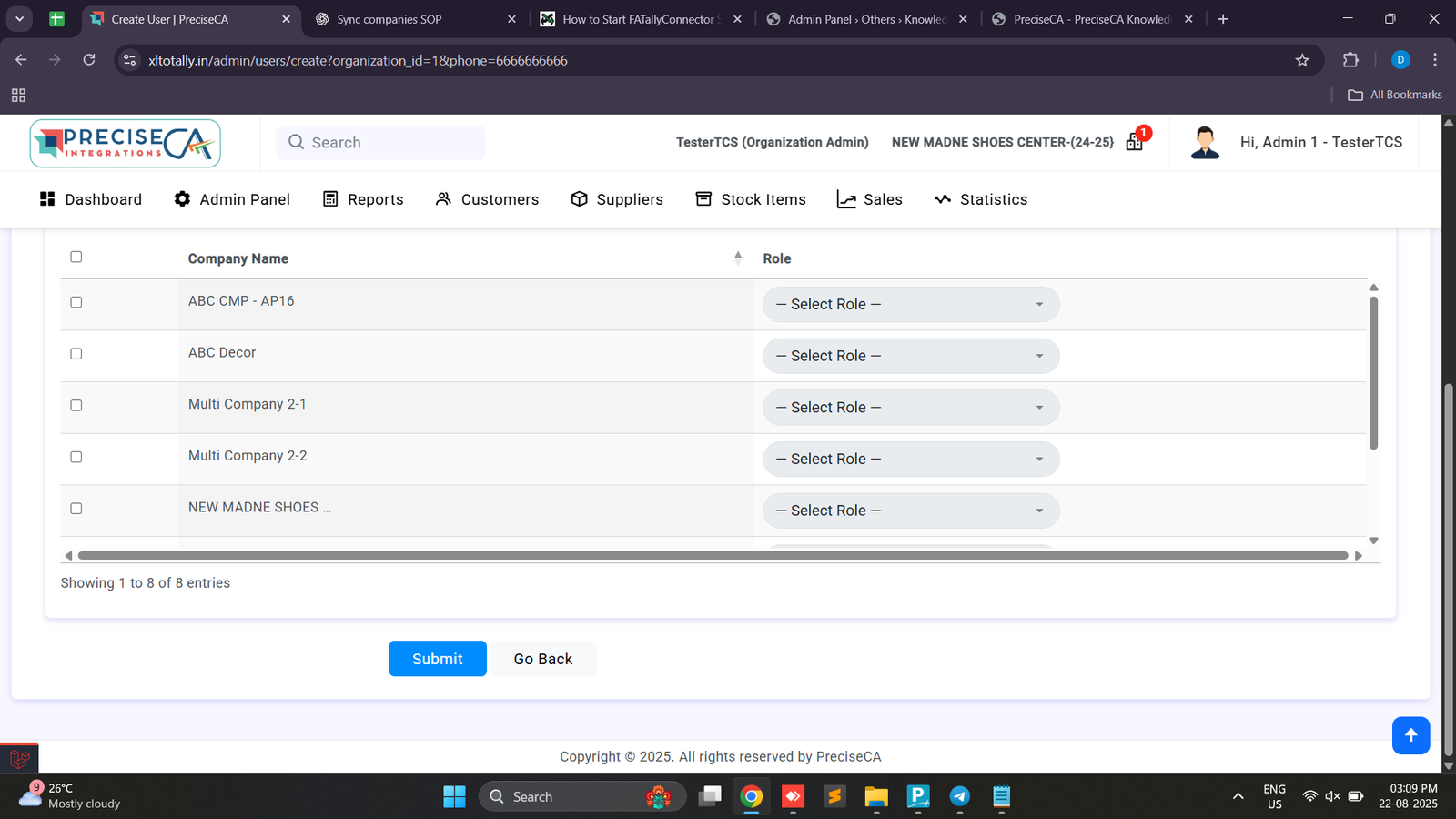
5 . Save User
- Once all details are entered and companies mapped, click Submit.
- The user will be successfully created.
- The new user can log in using their mobile number + OTP.
6 . View Users List
- Navigate to Admin Panel → Users.
- Here you will see all users under your organization, with their:
- Profile icon
- Name
- Phone number
- Newly added users will appear here immediately after creation.
Found this article helpful?
[ 0 Out of 0 Found Helpful ]